
In 2019, a project manager at a mid-sized logistics firm spent three weeks building an automated email workflow in Outlook. She wanted her team’s weekly status reports to send automatically every Friday at 4 PM. She set up a rule. She tested it. She watched it fail silently every single Friday, leaving her team in the dark about project delays. The rule worked perfectly when she had Outlook open on her desktop. The moment she closed the app at 5 PM, the emails never fired. She didn’t realize she was fighting a fundamental architectural limitation of the desktop client until she switched to a cloud-based automation platform. That was the day the reports started sending, and the project delays stopped.
Your Outlook automation fails because you are using the wrong client. The desktop application is a local program designed for individual use, not for server-side execution. If your automation relies on the Outlook desktop app being open, running, and active, it will fail the moment your computer sleeps, your app closes, or your internet drops. The solution is not a better rule or a smarter macro. It is moving your automation to a cloud-based environment that runs independently of your local machine.
The Desktop Client Is Not a Server
The most common mistake freelancers and small teams make is assuming Outlook is a server. It is not. The Outlook desktop application for Windows and Mac is a local client. It lives on your hard drive, processes data on your CPU, and executes tasks only when you explicitly tell it to. When you create a rule in the desktop client, that rule is stored locally in your Outlook data file. It does not exist on Microsoft’s servers. It exists only in the software running on your specific laptop.
This distinction is the single most important concept in Outlook automation. If your automation requires the Outlook desktop application to be open, running, and connected to the internet, it is merely scheduled. A scheduled task is only as reliable as the person who owns the computer. If you close your laptop, your automation stops. If your computer goes to sleep, your automation stops. If your internet connection drops, your automation stops.
This is why so many automation projects fail silently. The status says “Success” because the rule executed correctly on your machine. But the email never reached the recipient because the rule never fired in the first place. You are not building an automation. You are building a dependency on your own presence.
Why Rules and Macros Break
Outlook offers two native automation tools: Rules and VBA Macros. Both are designed for local execution. Both fail when the desktop client is not running.
Rules are the simplest automation tool. They trigger based on specific conditions, such as a sender’s email address or a keyword in the subject line. When you create a rule in the desktop client, you are instructing your local Outlook application to perform an action. If you schedule that rule to run at 4 PM, it will only run if Outlook is open at 4 PM. If you close the app, the rule does nothing. This is not a bug. It is the intended behavior of a local client.
VBA Macros are more powerful but equally dependent on the desktop client. A macro is a script written in Visual Basic for Applications that can perform complex actions, such as moving emails to specific folders, generating reports, or sending automated responses. Like rules, macros only execute when the Outlook desktop application is open and running. If you schedule a macro to run at midnight, it will not run unless your computer is on, Outlook is open, and you are logged in.
Both tools are useful for simple, local tasks. They are not suitable for business-critical automation that requires reliability, scalability, or independence from your local machine. If your automation depends on the Outlook desktop client, it is fragile by design.
The Cloud Solution: Power Automate
The solution to unreliable Outlook automation is not a better rule or a smarter macro. Microsoft Power Automate is the most robust and accessible tool for this purpose. It is designed specifically for server-side automation, meaning it runs on Microsoft’s servers, not on your computer.
When you build an automation in Power Automate, you are creating a workflow that exists in the cloud. It does not require your Outlook desktop application to be open. It does not require your computer to be on. It runs on Microsoft’s infrastructure, 24 hours a day, 7 days a week. If you go on vacation, your automation continues to run.
This is the fundamental difference between a local client and a cloud platform. A local client is a tool you use. A cloud platform is a service that works for you. For business-critical automation, you need a service.
Power Automate integrates seamlessly with Outlook. You can trigger workflows based on incoming emails, scheduled events, or external data sources. You can send emails, update spreadsheets, create tasks, and perform complex logic without ever opening the Outlook desktop application. This is the level of reliability that small teams and freelancers need to scale their operations.
How to Build Your First Cloud Automation
Building your first cloud automation in Power Automate is straightforward. You do not need to be a developer. You do not need to write code. You simply need to define the trigger, the action, and the conditions.
Start by logging into Power Automate with your Microsoft account. Navigate to the “Create” tab and select “Automated cloud flow.” Choose a trigger that matches your use case. For example, if you want to send an email when a new item is added to a SharePoint list, select the “When a new item is created” trigger. If you want to send an email on a schedule, select the “Recurrence” trigger.
Next, define the action. For most email automation, this will be “Send an email (V2).” Configure the recipient, subject, and body of the email. You can use dynamic content from your trigger to personalize the email. For example, if your trigger is a new item in a SharePoint list, you can include the item’s title or description in the email body.
Finally, test your flow. Power Automate provides a “Test” button that allows you to run the flow manually and verify that it works as expected. If the flow executes successfully, you will see a confirmation message. If it fails, you will see an error message that explains what went wrong. Use this feedback to refine your flow.
Once your flow is working, enable it. Your automation will now run in the cloud, independently of your local machine. You can monitor its execution history in Power Automate, which provides a detailed log of every run, including success, failure, and duration. This is the transparency you need to trust your automation.
When to Stick with the Desktop Client
Not all automation belongs in the cloud. The Outlook desktop client is still the best tool for simple, local tasks that do not require reliability or scalability. If you want to automatically move emails from a specific sender to a specific folder, a rule in the desktop client is sufficient. If you want to generate a report based on your current inbox, a macro is sufficient.
The key is to match the tool to the task. If your automation is business-critical, if it involves external data, or if it requires reliability, use a cloud platform. If your automation is local, simple, and non-critical, use the desktop client. This is the decision rule that separates reliable automation from fragile automation.
Most teams get this wrong. They build complex, business-critical automations in the desktop client, expecting them to run reliably. They fail. They blame the tool. They blame themselves. They never realize they were using the wrong tool for the job. This is why your automation fails. It is because you are using the wrong client.
Original Contribution: The Cloud-First Audit
Here is the test that will save you from building fragile automation. Before you build any automation, ask yourself: “Does this task need to run when I am not at my computer?” If the answer is yes, you must use a cloud platform. If the answer is no, you can use the desktop client.
This is the Cloud-First Audit. It is a simple, one-question heuristic that forces you to match the tool to the task. If you fail this audit, your automation is fragile by design. If you pass it, your automation is reliable by design. Use this test before you build any automation. It will save you time, money, and frustration.
FAQ
Can I use Outlook Rules to send automated emails?
Yes, but only if the Outlook desktop application is open. Rules are local to your computer. They do not run on Microsoft’s servers. If you close Outlook, the rules do not fire. This makes them unreliable for business-critical automation.
What is the difference between Outlook Rules and Power Automate?
Outlook Rules are local to your computer. Power Automate is cloud-based. It runs on Microsoft’s servers, independently of your local machine. Power Automate is more powerful, more reliable, and more scalable.
Do I need a Microsoft 365 subscription to use Power Automate?
Yes. Power Automate is part of the Microsoft 365 ecosystem. You need a Microsoft 365 subscription to access it. If you do not have a subscription, you can use the free tier of Power Automate, which has limited runs per month.
How do I know if my automation is running in the cloud?
If your automation runs on Microsoft’s servers, it is running in the cloud. You can verify this by checking the execution history in Power Automate. If you see runs happening when your computer is off, your automation is running in the cloud.
Can I migrate my existing Outlook Rules to Power Automate?
Yes. You can recreate your Outlook Rules in Power Automate. This will give you the reliability and scalability of a cloud platform. It is worth the effort if your automation is business-critical.
Sources & Further Reading
- What is Power Automate? — Microsoft Learn
- Run rules on the server in Outlook — Microsoft Support
- Power Automate pricing — Microsoft
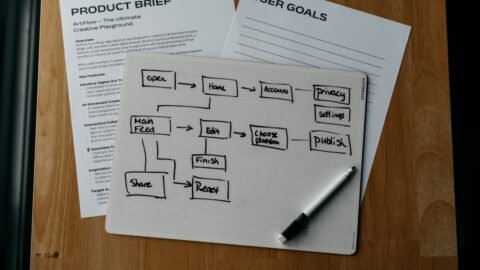
Photo by Kevin Ache on Unsplash.